

http://localhost:8080).
Login
The UI uses the same credentials as the CLI. Log in with the username and password you set during installation.Home page
After login, the home page shows all registered workspaces. Click a workspace to open it. From here you can also add new workspaces (GitHub repos or local paths).Board view
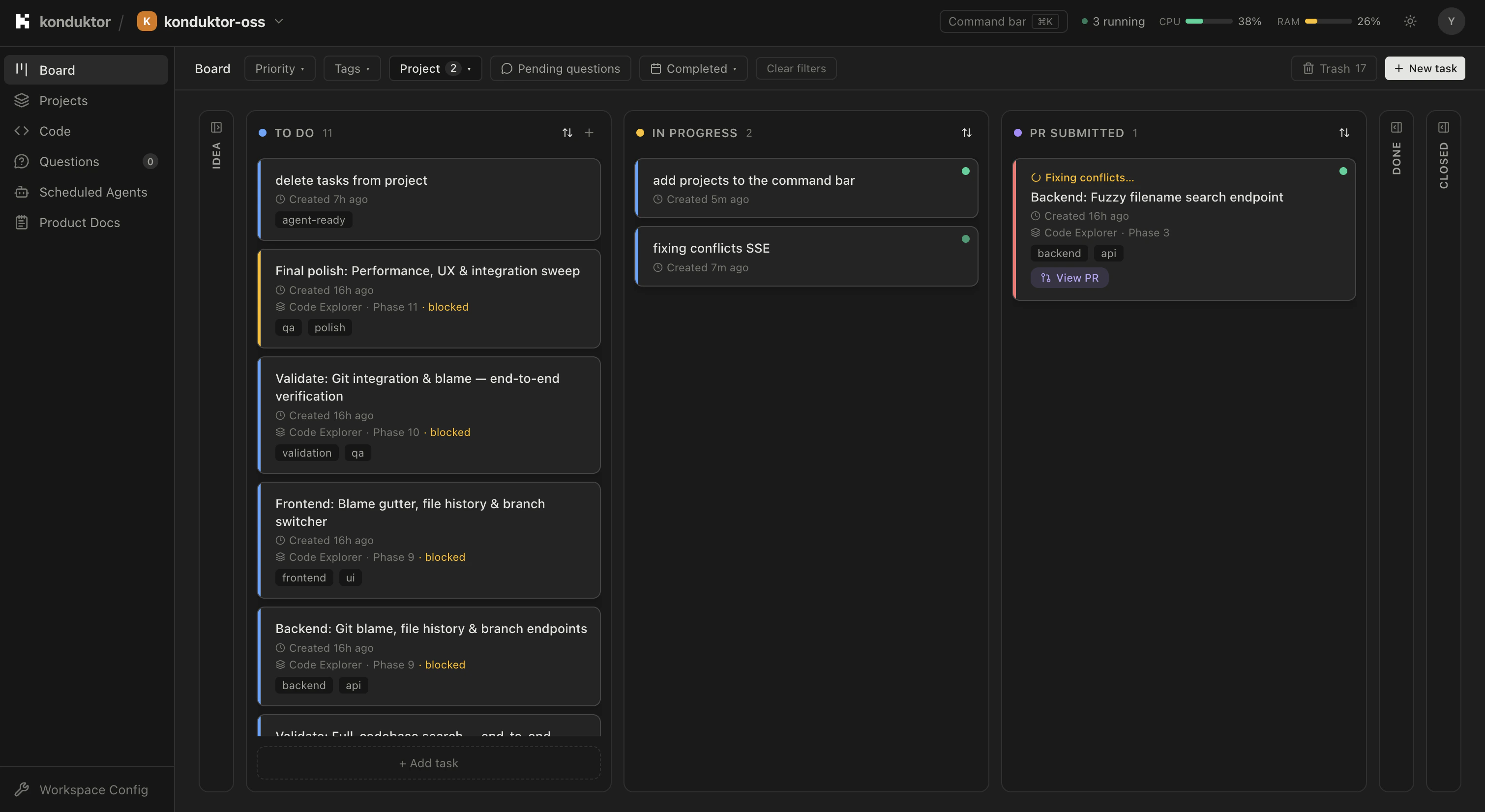
- Title and priority (color-coded: p0 red through p4 lowest)
- Tags
- PR link (if a PR has been created)
- Run status indicator
Actions from the board
- Create task — click the ”+” button on any column
- Move task — drag between columns or use the task modal
- Delete task — moves to trash (recoverable)
- Restore task — bring back from trash
Column collapsing
The “idea” and “done” columns can be collapsed to save space. Their collapsed state persists across page loads (saved to localStorage).Filtering
Filter the board by project using the project selector at the top of the board view.Task modal
Click any task card to open the full task detail modal. It includes:- Title and description — editable with a rich Markdown editor
- Priority and tags — editable inline
- Status — move between columns
- PR link — links to the GitHub PR if one exists
- Project and phase — assign to a project and phase
- Questions — view and answer questions the agent asked during execution
- Run history — see all sessions (attempts) for this task, with status, duration, and log links
Projects
The projects view lets you manage projects and their phases:- Create projects with name, description, priority, and tags
- Add ordered phases (e.g. “Design”, “Implementation”, “Testing”)
- Reorder phases via drag-and-drop
- View tasks grouped by project and phase
Documents
The documents view manages workspace documents that provide context to agents:- Create and edit documents with a Markdown editor
- Documents can be set to “agent-visible” so they’re included in task agent context
- Inline document injection has a total size limit of 8,000 characters per workspace
Questions
When an agent running a task has a question, it appears in the questions view:- View all pending questions across the workspace
- Filter by status (pending, answered, dismissed, incorporated) or by task
- Answer questions inline — the agent picks up answers on its next check
- Dismiss irrelevant questions
Scheduled agent
The scheduling view configures the automated scheduled agent:- Set a cron schedule (e.g. every 4 hours)
- Enable or disable the schedule
- Provide custom instructions for what the scheduled agent should focus on
- View logs from past scheduled runs
- Trigger an immediate run
Configuration
The workspace configuration page lets you:- Toggle auto-fix merge conflicts
- View and edit the custom task agent system prompt
Command bar
PressCmd+K (macOS) or Ctrl+K (Linux) to open the command bar for quick navigation:
- Search for tasks by title
- Jump between workspaces
- Create new tasks
- Navigate to any section